IPTV Smarters Pro can be installed on Android TV, Google TV, Fire Stick and some Smart TVs. Install it from your device’s official app store first; use another method only when the official store does not offer a compatible version.
The app is a player, not a channel provider. You need authorised M3U playlist details or Xtream Codes login details before you can use it.
IPTV Smarters Pro : à quoi sert l’application ?
IPTV Smarters Pro reads playlists and account details you add yourself. It can organise live TV, VOD, series, favourites and an EPG when those elements are included with your authorised access.
It does not provide channels, films, séries or a subscription. The content shown in the app depends entirely on the M3U playlist, Xtream Codes account or portal you enter.
| Connection type | What you need |
|---|---|
| Xtream Codes | Server URL, username and password |
| M3U playlist | Playlist name and M3U URL |
| M3U file | A playlist file, when the app version supports local files |
| Portal | Portal address and the information provided by your authorised service |
Do not share your playlist URL, server URL, username or password publicly.
Avant d’installer IPTV Smarters Pro
Check your device, storage and connection before installing the app. This avoids installation errors, app crashes and setup problems.
Prepare your M3U or Xtream Codes details before opening the app. You will need them immediately after the installation.
Vérifier votre appareil
Android TV and Google TV use Google Play, Fire Stick uses the Amazon Appstore, Samsung uses Samsung Apps, and LG uses LG Content Store. Search the correct store first because each platform uses different app formats.
| Device | First store to check |
|---|---|
| Android TV | Google Play Store |
| Google TV | Google Play Store |
| Fire TV Stick | Amazon Appstore |
| Samsung Smart TV | Samsung Apps |
| LG Smart TV | LG Content Store |
| Android phone or tablet | Google Play Store |
| iPhone or iPad | App Store |
Préparer vos informations de connexion
Use the login method that matches the information you received. Choose Xtream Codes only if you have server URL, username and password; choose M3U only if you have a playlist URL.
For Xtream Codes, prepare:
- Server URL
- Username
- Password
- Profile name
For M3U, prepare:
- Playlist name
- Full M3U URL
- Optional guide-TV information, if it was supplied
Vérifier l’espace de stockage et la connexion
Keep free storage on the device and use a stable connection. A full Fire Stick, TV box or Smart TV can slow down, fail to install apps or close the player unexpectedly.
Test the internet connection on the television or streaming stick, not only on your phone. If playback stops or buffers, check your local network with a test de débit IPTV.
Hot IPTV ne fonctionne plus ? Consultez notre guide pour résoudre les problèmes de Hot IPTV : Stream Failed, playlist vide, écran noir et coupures.
Comment installer IPTV Smarters Pro sur Android TV et Google TV
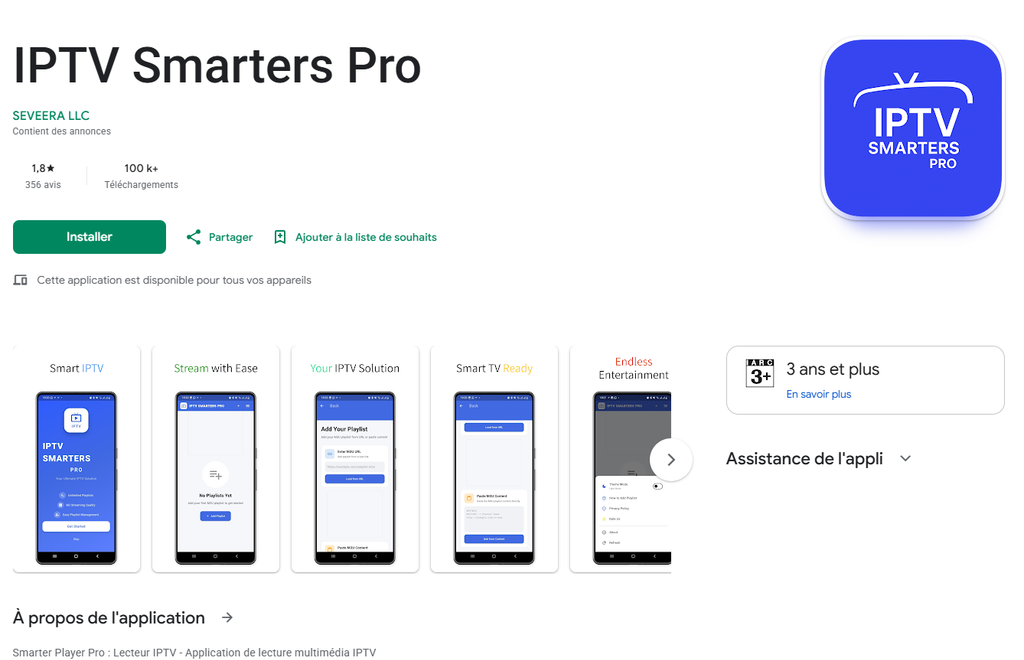
On Android TV and Google TV, open Google Play and search for “Smarters Pro” or “IPTV Smarters Pro.” Confirm the app name and developer before installing it.
Do not install a random APK if Google Play already provides a compatible version. The official store is the simplest method for updates and app management.
Installation depuis Google Play
- Turn on your Android TV or Google TV.
- Open Google Play Store.
- Search for
Smarters ProorIPTV Smarters Pro. - Check the app name and developer.
- Select Install.
- Wait for the download to finish.
- Open the application.
Ouvrir l’application et préparer la configuration
Open the app and select the option to add a user or profile. Do not enter details until you know whether your access uses Xtream Codes or M3U.
Choose the matching setup option:
- Xtream Codes API for server URL, username and password.
- M3U playlist for a playlist URL.
- Local file only if you have a compatible M3U file stored on the device.
Comment installer IPTV Smarters Pro sur Fire Stick
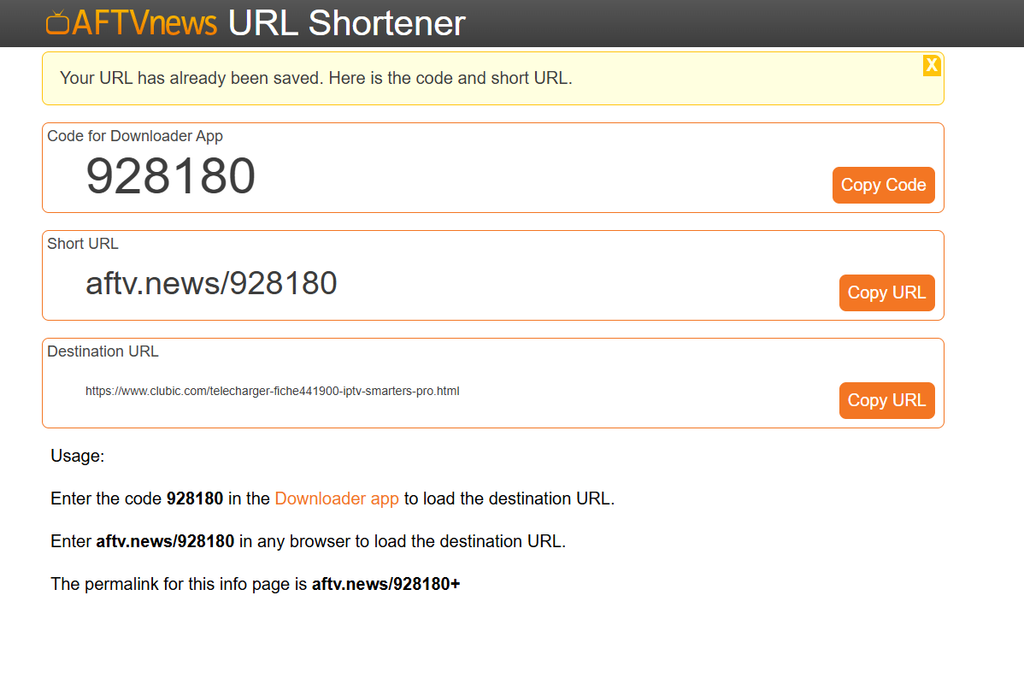
Search the Amazon Appstore first for “IPTV Smarters Pro” or “Smarters Pro.” Install it directly from Amazon if a verified compatible version is available.
If it is unavailable in your Amazon region, use Downloader with the code 928180. Check the application name, file type and source before installing anything.
Installer Downloader sur Fire Stick
- From the Fire TV home screen, select Search.
- Type
Downloader. - Select the Downloader app from the Amazon Appstore.
- Select Get or Download.
- Open Downloader after installation.
Autoriser Downloader seulement si nécessaire
Enable external installation only for Downloader and only while you need it. Turn the permission off after you finish installing the app.
- Open Settings.
- Select My Fire TV.
- Open Developer Options.
- Select Install unknown apps.
- Enable permission for Downloader only.
Menu names can differ by Fire OS version.
Utiliser le code Downloader 928180
Enter 928180 in Downloader, then confirm that the displayed file is the correct Fire TV or Android TV version. Do not install files labelled “cracked,” “premium free,” “modded” or similar terms.
- Open Downloader.
- Enter this code:
text928180- Select Go.
- Check the app name before downloading.
- Download the version made for Fire TV or Android TV.
- Select Install.
- Open the application after installation.
- Delete the APK file after installation to free storage.
Vérifier l’éditeur et le fichier
Install only a file that clearly identifies the application and its compatible device. If the page is unclear, contains aggressive ads or asks for unrelated permissions, close it.
Do not enter your IPTV login details into an application you cannot identify. Remove suspicious apps immediately from your Fire Stick.
Comment installer IPTV Smarters Pro sur Smart TV
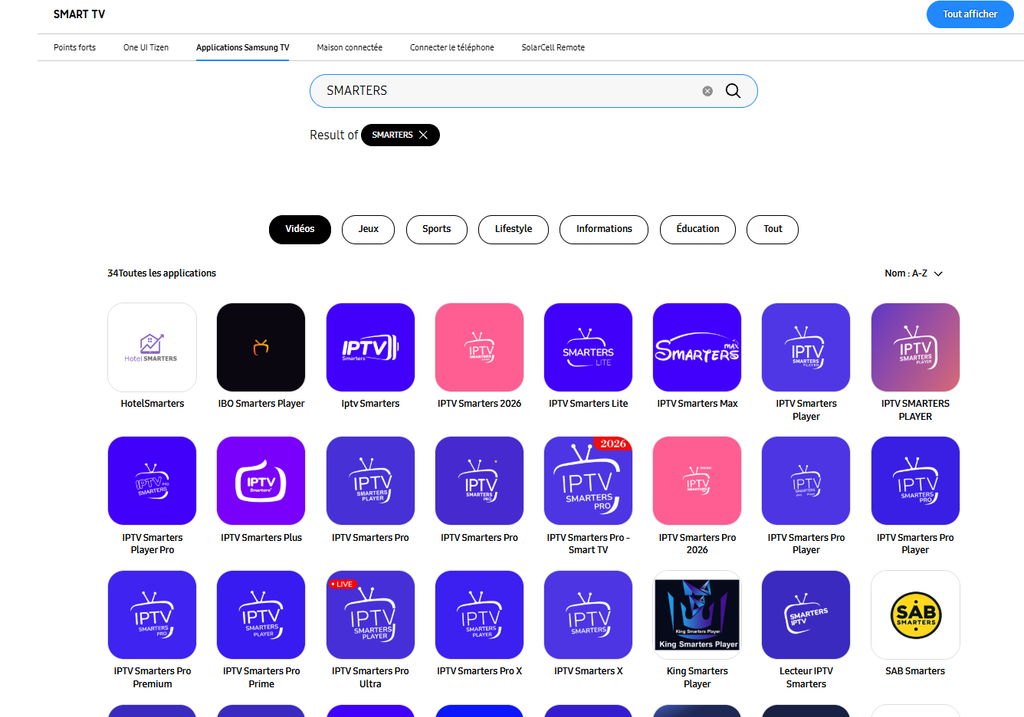
Smart TV installation depends on your operating system. Samsung uses Tizen, LG uses webOS, while some Sony, TCL, Philips and Xiaomi TVs use Android TV or Google TV.
Check the TV’s own app store before using any alternative method. Samsung and LG TVs do not install Android APK files directly.
Samsung Tizen : rechercher SMARTERS PRO
On Samsung Smart TV, search for SMARTERS PRO in Samsung Apps. Check the app details and developer before installing because similar app names may appear.
- Press Home on the Samsung remote.
- Open Apps.
- Select the search icon.
- Search:
textSMARTERS PRO- Open the correct listing.
- Check the developer and compatibility.
- Select Install.
If the app is not available, check your TV software, model, Samsung account region and local app-store catalogue.
LG webOS : vérifier les applications disponibles
On LG Smart TV, open LG Content Store and search for SMARTERS PRO or IPTV Smarters Pro. Availability can differ by model, country and webOS version.
- Press Home on the LG remote.
- Open LG Content Store.
- Search for:
textSMARTERS PRO- Check the application details.
- Install only a version from a verifiable publisher.
Do not try to install an Android APK on an LG webOS TV. If the player is not available, use a compatible webOS player or connect an Android TV, Google TV or Fire TV device.
Quand choisir une application alternative
Choose another player only when IPTV Smarters Pro is unavailable for your TV operating system. The alternative must support the connection format you already have.
Before installing another player, verify whether it supports:
- M3U playlists
- Xtream Codes
- EPG or guide TV
- Multiple profiles
- Your exact TV system
For Android-compatible alternatives, compare options in our guide des meilleurs lecteurs IPTV Android.
Comment configurer IPTV Smarters Pro ?
To configure IPTV Smarters Pro, add a profile using Xtream Codes or M3U. Select the method that matches the details you received.
Copy URLs exactly and check every login field before saving. Small errors in a server address, username or password cause most setup failures.
Ajouter une connexion avec Xtream Codes
Choose Xtream Codes when you have a server URL, username and password. Do not select this option if you only have an M3U playlist link.
- Open IPTV Smarters Pro.
- Select Add User or the equivalent option.
- Choose Login with Xtream Codes API.
- Enter a profile name.
- Enter the server URL.
- Enter the username.
- Enter the password.
- Confirm the information.
- Select Add User or Login.
Ajouter une playlist M3U
Choose M3U when you received one complete playlist link. Paste the full link exactly as provided.
- Open IPTV Smarters Pro.
- Select the playlist option.
- Choose M3U playlist.
- Enter a profile name.
- Paste the full M3U URL.
- Save the profile.
- Wait for the playlist to load.
Vérifier l’URL, l’identifiant et le mot de passe
Check the server URL, username and password before trying again. A single missing character or extra space can prevent the app from loading.
Check these points:
- The URL starts with the correct protocol, if provided:
http://orhttps:// - No spaces were added before or after the URL
- Username spelling matches exactly
- Password capitalization matches exactly
- You selected the correct login method
- Your access is currently active
Nommer votre profil et charger les catégories
Use a simple profile name so you can identify each connection easily. This is useful if you use more than one device or profile.
Examples:
textSalon
Chambre
Fire Stick
Android TV
Compte principal
After the first load, check whether the available categories appear correctly: live TV, films, series, guide TV and favourites.
Comment utiliser IPTV Smarters Pro après l’installation ?
After setup, use the app to access the categories included with your authorised account. The sections you see depend on the playlist or login data you added.
Use favourites and search to reduce navigation time. They are useful when your profile contains many categories.
Direct, films, séries et guide TV selon les accès
The app can show live TV, films, series, catch-up and guide TV only when those items are included in your access. The player does not create missing categories.
Common sections include:
- Live TV
- Movies
- Series
- Catch-up
- EPG or guide TV
- Favourites
- Settings
Favoris, recherche et profils
Add frequently used channels or categories to favourites. This gives you a shorter list to browse from the home screen.
Use search when you know the name of a channel, film or series. Create separate profiles only when you need to keep different authorised access details separate.
Déconnexion et protection des accès
Remove or log out of your profile before selling, giving away or resetting your device. This prevents your login details from remaining on an old television, box or Fire Stick.
Do not post screenshots that show:
- Server URL
- Username
- Password
- M3U URL
- Account expiry details
IPTV Smarters Pro ne fonctionne pas : vérifications rapides
If IPTV Smarters Pro does not work, check the device, internet connection and login details first. Restarting the app and device often resolves temporary problems.
Do not try to bypass platform, network or rights restrictions. Use only legitimate apps and authorised access details.
L’application ne s’ouvre pas
Restart the device and confirm that enough storage is available. An overloaded Fire Stick, TV box or Smart TV can close apps or freeze during launch.
Try these actions:
- Restart the TV, Fire Stick or Android box
- Close unused apps
- Install pending system updates
- Install app updates
- Clear cache where the system offers this option
- Reinstall only from a verified source
Identifiants refusés
Rejected credentials usually mean an incorrect field or inactive access. Compare every field with the information you received instead of guessing.
Check:
- Server URL
- Username
- Password
- Capital letters
- Extra spaces
- Chosen login method
- Access status
Catégories ou guide TV absents
Empty categories usually mean the playlist did not load correctly or the account does not include that content. Wait for the first load to finish, then reopen the app.
For guide TV issues, look for an update or refresh option in the app settings. The EPG depends on the data included with your authorised access.
Image qui coupe ou écran noir
Buffering or a black screen is often caused by local Wi-Fi, device storage or a temporary app issue. Test your connection directly on the device that is playing the content.
Try these fixes:
- Restart the router
- Move the Fire Stick closer to the Wi-Fi source
- Close unused applications
- Check device updates
- Test another internet app on the same device
- Run a test IPTV de 24 heures on the same device and network before choosing a longer plan
FAQ
IPTV Smarters Pro fournit-il les chaînes ?
No. IPTV Smarters Pro is a media player. It displays authorised M3U playlists, Xtream Codes accounts or other supported sources that you add yourself.
Quelle est la différence entre M3U et Xtream Codes ?
M3U is a playlist URL, while Xtream Codes uses a server URL, username and password. Both methods can be used in compatible IPTV players when they are provided by an authorised service.
IPTV Smarters Pro fonctionne-t-il sur Fire Stick ?
Yes, it can work on Fire Stick when you install a compatible version. Search the Amazon Appstore first; if it is unavailable, use Downloader code 928180 and verify the displayed application before installing it.
IPTV Smarters Pro fonctionne-t-il sur Samsung TV ?
It can be available on compatible Samsung Smart TVs. Open Samsung Apps, search SMARTERS PRO, then verify the app developer and compatibility before installation.
Peut-on utiliser IPTV Smarters Pro sur plusieurs appareils ?
You can install the player on more than one device, but simultaneous use depends on your authorised account conditions. Check how many concurrent connections your service allows before using the same access on several screens.
Pourquoi IPTV Smarters Pro ne fonctionne-t-il pas ?
Check your connection, available storage, updates and login details first. Restart the app and device, then confirm that your authorised access is active if the problem continues.
Conclusion
Install IPTV Smarters Pro from the correct store for your device, then add your authorised M3U or Xtream Codes details. Android TV, Google TV, Fire Stick, Samsung and LG Smart TV each have different installation paths.
Check the app source, protect your credentials and test the player on your real device and home connection. This gives you the most reliable result before using the app regularly.

One Response